10 Overlooked Google Ads Features That Help Reduce Wasted Spend
Google Ads keeps getting more complex. New settings, controls, and automation options show up constantly, and it’s easy to focus on campaign structure and bidding strategy while missing smaller features that quietly affect performance.
Some of these features get plenty of attention. Others don’t — even experienced PPC managers skip past them, often because they’re new, buried in menus, or don’t look important at first glance.
Here are 10 Google Ads features that have become part of my regular account management routine. None of them are secret, but I still see them sitting unused in a lot of accounts, and that usually means missed opportunities, wasted spend, or slower growth than the account could otherwise see.
1. Seasonal Adjustments
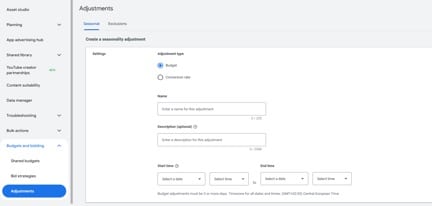
Honestly, I don’t know how I managed accounts without this feature before.
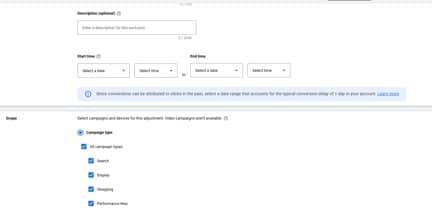
Seasonal Adjustments were originally built to help advertisers prepare for promotions and one-off events. I use them a little differently — as a way to steer Google’s algorithm without restructuring campaigns.
My most common use cases:
- +20% conversion rate adjustment when I need to push volume up.
- −20% conversion rate adjustment when I want to pull traffic back slightly without touching Smart Bidding settings.
- Positive budget adjustments for top-performing campaigns.
- Negative budget adjustments for underperformers.
This combination sometimes lets me lower CPA without losing much volume — for example, cutting a target CPA significantly while applying a +15% conversion rate adjustment at the same time.
There’s more than one way to use this feature, and the right approach depends on the account and the goal. For me, it’s become one of the most useful optimization tools in Google Ads.
One caution: use Seasonal Adjustments carefully. Remove them once performance shifts, or extend the window if the conditions you expected are still in play. I’ve also noticed the system tends to spend more aggressively in the last few days of an adjustment period, so I keep a closer eye on things toward the end.
2. Brand Exclusions and Brand Lists
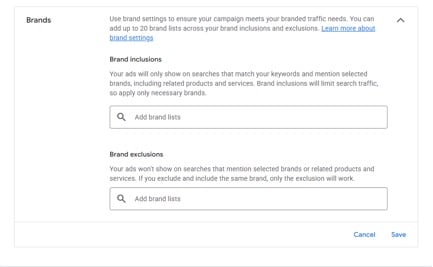
This is a newer feature, and it’s quickly become one of my favorite control tools in Google Ads. It cuts down on the keyword and negative-keyword lists you’d otherwise manage by hand, while giving you more say over where your ads actually show up.
Brand Lists sit inside Google’s automation toolkit, but in practice they hand back control over targeting and traffic quality.
A few ways I use them:
Brand traffic segmentation. I’ll often split branded and non-branded traffic into two campaigns — one limited to my own brand terms, one that excludes them. That makes it much easier to see what branded traffic is actually worth and whether it deserves more investment.
Marketplace exclusions. For some businesses, showing up for searches that mention marketplaces like Amazon, Zalando, or eBay doesn’t make sense. This matters most for luxury brands, designer products, and any business trying to drive customers to its own site instead.
Demand-based brand filtering. Sometimes people searching for a huge, well-known brand just aren’t the right audience. A local fast-food chain, for instance, probably shouldn’t chase traffic searching for McDonald’s — the scale and intent behind that search are a different world.
Competitor brand management. Whether to include or exclude competitor brands depends on the vertical. Sometimes that traffic converts well and earns its own campaign. Other times, cutting it out improves traffic quality and cuts wasted spend.
Related product brands. Brand Lists can also flag complementary intent. An AC installation company, for example, might want to reach people searching for specific AC brands or models, since that kind of search usually signals real purchase intent.
3. Audiences in Observation Mode
Not a new feature, but still one that gets overlooked more than it should.
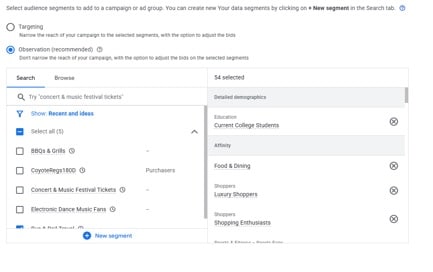
Observation mode lets you learn about your audience without narrowing reach or spending extra budget. You can watch how different segments perform while your existing targeting stays exactly the same.
The main benefit: you don’t have to restrict anything. Add audience segments in Observation mode, then compare their performance against the campaign as a whole.
I use this regularly to spot high-performing audience groups, find new optimization angles, and make smarter bidding calls. In Search campaigns, it also lets you apply bid adjustments based on audience performance — an extra layer of control that doesn’t limit traffic.
If you lean heavily on automation, Observation mode is often where the insights that get buried in aggregated campaign data actually surface.
4. Data Exclusions
This one matters for how well Google’s machine learning makes optimization decisions. It touches every Smart Bidding strategy — Performance Max, Demand Gen, and automated Search bidding included.
I use Data Exclusions whenever a period doesn’t reflect normal business performance. Before applying one, I ask a simple question: would I want Smart Bidding to learn from this data? If not, it’s usually worth excluding.
My most common reasons:
- Periods when conversion tracking broke.
- Days with unusually poor lead quality, so Smart Bidding doesn’t treat weak conversions the same as qualified ones.
- One-off anomalies — promotions, holidays, unexpected traffic spikes — that don’t reflect normal behavior.
Skip Data Exclusions and Google’s algorithms end up optimizing against misleading signals. Used carefully, this feature keeps Smart Bidding learning from data that actually represents your business.
5. Customer Acquisition Goals and Re-engaging Lapsed Customers
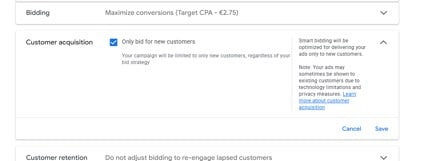
Separating new and existing customers is one of the simplest ways to make a campaign more efficient. Google Ads lets you upload customer lists, assign different values to existing customers, or bid exclusively for new customer acquisition.
But this feature does more than it looks like on the surface. A few ways I use it:
The obvious one: upload your full customer list so you’re not paying for conversions you’d likely get anyway.
Prioritize your best customers: build separate lists by engagement or value — premium customers, repeat buyers, people who’ve contacted you multiple times — and assign them higher value so Google’s bidding knows they matter more. In Performance Max, I add these lists as audience signals and turn on “Bid for new customers only.”
Exclude low-value existing customers: sometimes I’ll build a list of people who’ve contacted the business repeatedly without converting, or another low-intent segment. When the goal is growth rather than re-engagement, I’d rather put budget toward acquiring genuinely new customers than chase audiences that have already shown they’re not that interested.
6. Value-Based Bidding for Lead Generation
Value-Based Bidding isn’t only for ecommerce — it works well for lead gen too, especially when profitability matters more than raw lead count.
A lot of lead gen advertisers either skip assigning values to conversions, or collect that data and never actually bid on it. That’s a missed opportunity.
A few approaches that have worked for me:
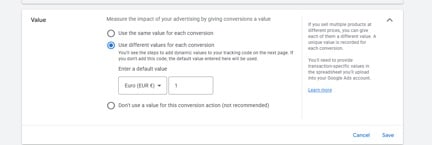
Use the real value of each conversion. The ideal setup — if you know the revenue or profit behind each lead, assign real values and bid toward a target ROAS.
Use your target CPA as the conversion value, and set target ROAS to 100%. This tells Google every conversion should generate at least the value you’ve set. In some of my tests, this reached CPA targets faster than a standard tCPA strategy — worth A/B testing against each other.
Assign different values to different conversion actions. If you’re tracking multiple stages — form fills, qualified leads, closed deals — different values help Smart Bidding chase the better outcomes instead of treating every conversion the same.
Run tCPA and tROAS experiments side by side. The right strategy depends on the account. Running both lets you compare volume, CPA, and profitability before picking a winner.
7. Demand Gen Lookalike Audiences
Not a new feature, but it’s gained value since Google replaced Lookalike Audiences with Optimized Targeting across most campaign types.
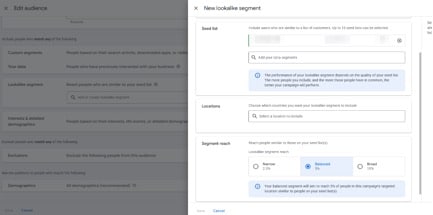
Demand Gen is now the only campaign type where Lookalike Audiences are still fully usable. If you have solid conversion data and a good seed list, it’s worth testing.
Lookalikes help you reach beyond your core audience once your existing targeting starts to plateau.
My usual approach: add all three audience sizes — Narrow, Balanced, and Broad — to the same campaign. Demand Gen reports on each segment separately, so it’s easy to see which similarity level works best for a given business.
8. Insights Section
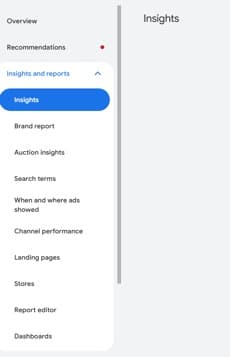
The Insights section is one of the most overlooked parts of Google Ads. Most advertisers stick to reports and recommendations — I check Insights regularly to see what’s happening beyond the standard campaign metrics.
Depending on your campaign type and available data, Google surfaces insights on search demand, audience behavior, competition, search categories, and asset performance. I don’t treat every insight as something to act on immediately, but it’s a solid starting point for further analysis.
The three reports I rely on most: Search Terms Insights, Audience Insights, and Asset Insights.
Search Terms Insights groups individual queries into broader themes, which makes it easier to spot optimization opportunities, find new keyword ideas, and flag irrelevant categories.
Audience Insights shows which segments are performing best and surfaces new audiences worth testing.
Asset Insights highlights your strongest creative combinations and which assets are actually driving performance.
These reports matter most in Performance Max, where visibility is limited to begin with. They give me the context to understand what’s driving performance, scale the audience segments that are working, and make creative decisions with actual data behind them instead of treating PMax as a black box.
9. AI-Powered Creative Tools
Google Ads is rolling out AI features fast, and while not all of them are production-ready, a few already save real time on creating and testing new creative.
One I keep coming back to is Video Generation. Instead of building videos from scratch, Google can generate them straight from your existing images, logos, headlines, and descriptions. For a lot of advertisers, that’s a quick way to add video assets to Performance Max and Demand Gen without a designer or video editor on hand.
In my experience, the best results come from high-quality images without text overlays, kept visually simple. Clean source images give Google’s AI more room to produce videos that look natural rather than stitched together.
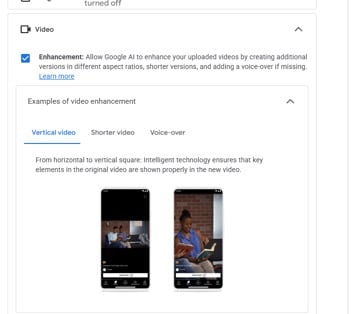
The campaign-level AI creative settings are worth exploring too — Google now lets you add extras to generated videos, including AI voiceovers. I wouldn’t swap these in for professionally produced creative, but they’re a fast way to build test assets or fill a gap when video production isn’t available.
Quality varies, but given that these assets take a few minutes to create, they’re worth testing before you commit to a custom production budget.
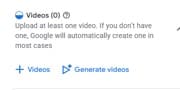

Campaign-level settings are also worth checking directly — that’s where you can turn on voiceover for a generated video.
10. Value Rules
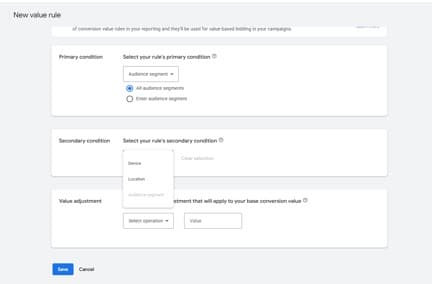
Value Rules are one of the simplest ways to get Smart Bidding to reflect your actual business priorities. Instead of treating every conversion as equal, they let you raise or lower conversion value for specific audiences, locations, or devices — without touching your conversion tracking.
One use case I come back to often: adjusting values by geographic performance. If leads from certain regions consistently bring in more revenue or close at a higher rate, I assign them a higher value so Smart Bidding prioritizes the locations that are actually profitable, not just the ones generating volume.
Another is adjusting values for remarketing audiences or other high-value segments. If returning visitors tend to convert into higher-value customers, raising their assigned value pushes Google’s bidding toward similar opportunities.
The catch: only use Value Rules when you have solid business data behind the adjustment. Otherwise you’re teaching Smart Bidding to optimize toward assumptions instead of real customer value.
That’s it for Part 1.
Google Ads keeps adding new features and optimization tools, and there’s plenty more worth digging into. The ten here are all part of my day-to-day account management, and I hope a few of them open up new opportunities in your own accounts.
See you in Part 2.